Onstream apk ios: Install on iPhone and iPad, Step by Step
OnStream is not on the App Store, and there is no such thing as an onstream apk ios file that installs on an iPhone. That is the honest starting point. What does work is installing the iOS version of the app, an IPA file, through a sideloading tool, and this page walks you through exactly how to do that, which tool to pick, and how to fix the one problem almost every other guide leaves out: the app suddenly refusing to open after a few days.
App Information
OnStream for iOS
IPA (not APK)
1.2.0
iPhone, iPad, iPod Touch
No
iOS 12.0 or later
19.2 MB
Entertainment / Streaming
Free
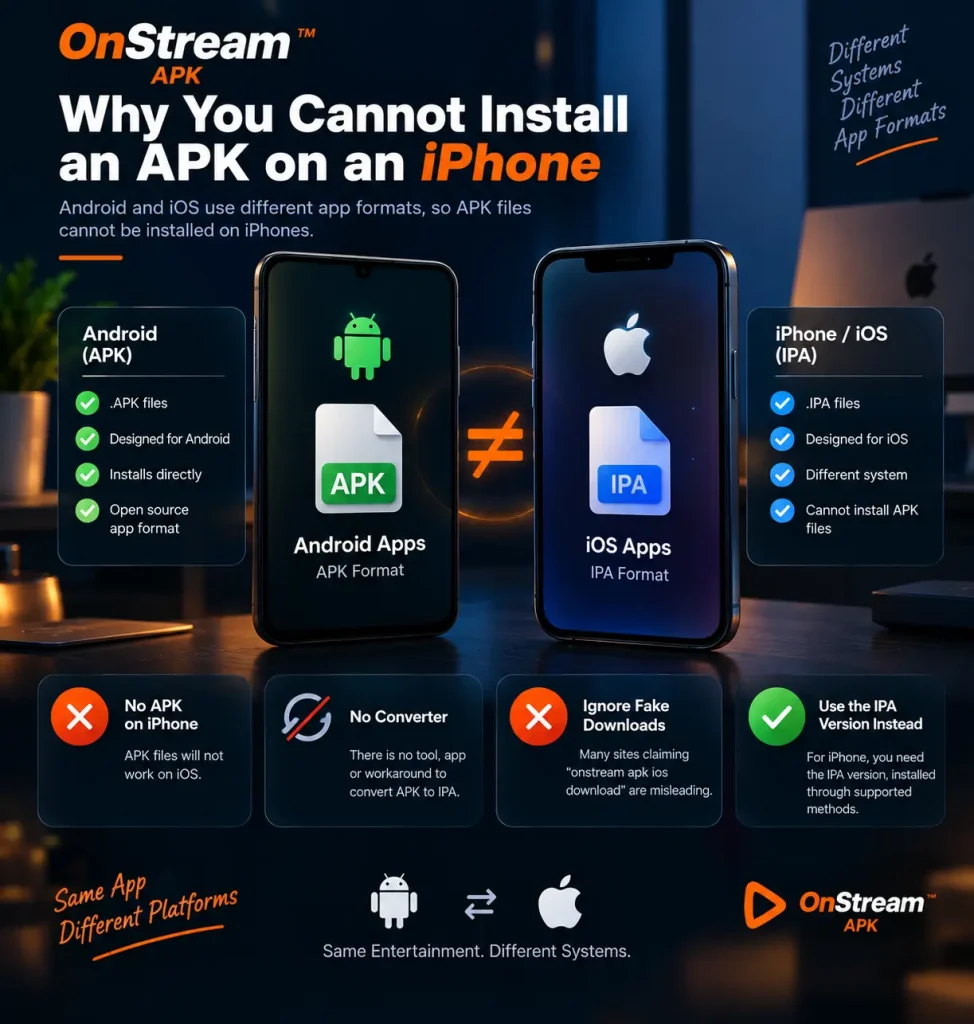
Why You Cannot Install an APK on an iPhone
This confuses a lot of people, and it is worth two minutes to understand because it explains why so many pages promising an onstream apk ios download lead nowhere useful.
Android apps ship as APK files. iOS apps ship as IPA files. These are completely different package formats built for completely different operating systems, and no converter, app store, or workaround turns one into the other. When you see a page advertising an onstream apk iphone download, either the site is using the word APK loosely to mean “app file,” or it is not offering what it claims to offer.
So if you searched onstream apk for ios, onstream ios apk, onstream apk for iphone, or onstream app apk ios, what you actually need is the IPA version, installed through one of the methods below. The functionality is identical to the Android app, it is simply packaged for a different operating system.
One more thing worth clearing up: searches for onstream apkpure ios will not get you anywhere either, because APKPure is an Android app repository. Nothing hosted there will run on an iPhone, regardless of what a listing claims.
Which Install Method Should You Use?
Every other guide picks one tool and tells you to use it without explaining the trade offs. Here is the actual comparison, because the right choice genuinely depends on how much setup you are willing to do and how much risk you are comfortable accepting.
|
Method |
Setup Difficulty |
How long it lasts |
Needs a Computer |
Risk Level |
|---|---|---|---|---|
|
AltStore |
Moderate |
7 days, auto refreshable |
Yes, once |
Low |
|
Sideloadly |
Moderate |
7 days, manual refresh |
Yes, everytime |
Low |
|
Scarlet |
Easy |
Until certificate is revoked |
No |
Medium |
|
TutuApp and similar |
Easy |
Until certificate is revoked |
No |
Medium to High |
|
Jailbreaking |
Hard |
Permanent |
Yes |
High, not recommended |
Our recommendation is AltStore for most people. It takes about twenty minutes to set up the first time, but it is open source, widely used for legitimate purposes beyond streaming apps, and it does not require trusting an unknown company with a configuration profile on your phone. Scarlet is faster to set up and is what most competitor guides point you toward, but the certificates it relies on get revoked by Apple regularly, which is exactly why so many people end up searching why their app stopped working a week after installing it.
We do not recommend jailbreaking for this. It removes iOS security protections across your entire device rather than just for one app, and there is no version of that trade off that makes sense for a single streaming app.
Method 1: Install OnStream on iOS Using AltStore (Recommended)
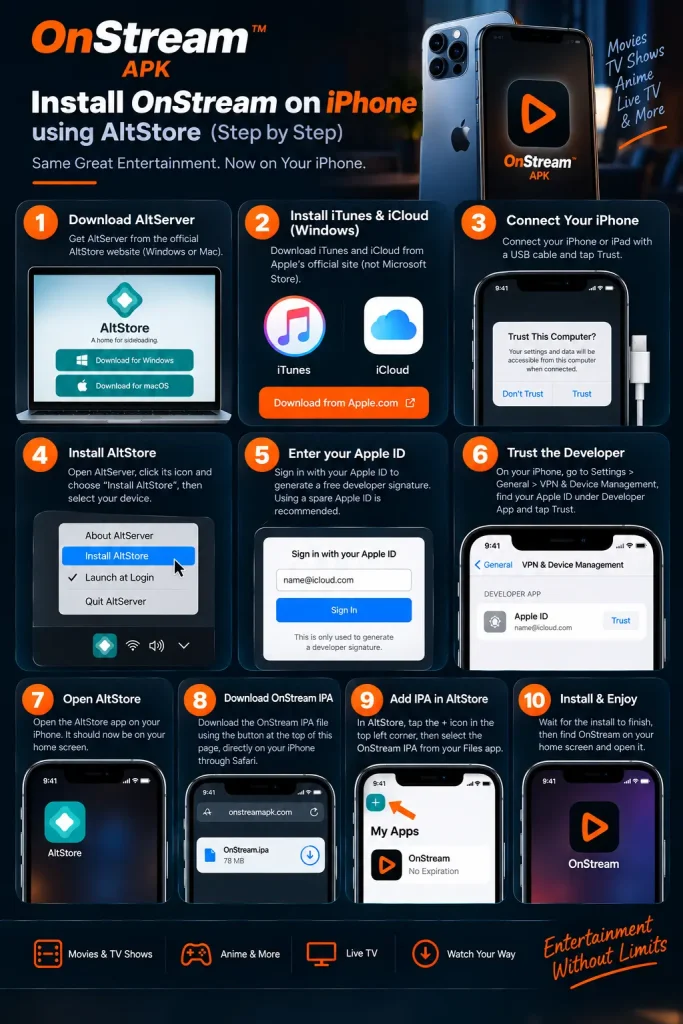
This is the longer setup, but it causes the fewest problems afterward.
The whole process takes roughly twenty minutes the first time. Every install after this one, including future updates, only needs steps 8 through 10.
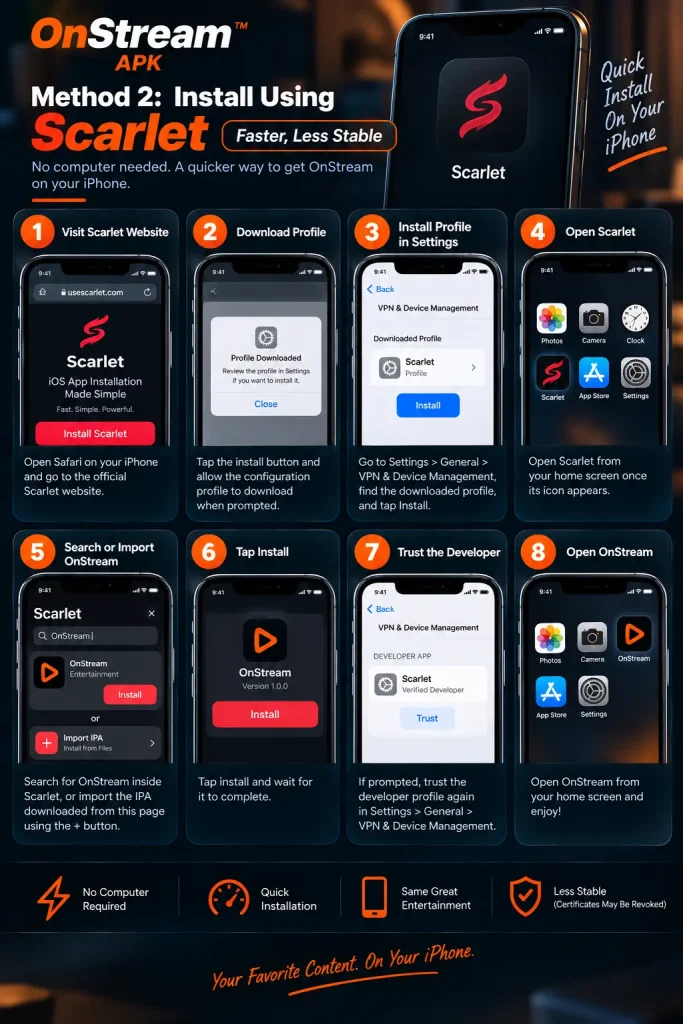
Method 2: Install Using Scarlet (Faster, Less Stable)
If you want to skip the computer entirely, Scarlet is the route most other guides recommend. It is genuinely quicker, but understand the trade off before you start: Scarlet relies on enterprise certificates that Apple revokes periodically, and when that happens, every app installed through it stops opening until Scarlet issues a replacement.
If the app stops working after a few days or weeks, that is the certificate revocation issue explained below rather than anything you did wrong.
The Certificate Revocation Problem Nobody Warns You About
This is the single most common complaint from iOS users running sideloaded apps, and it is genuinely odd how few guides mention it at all.
Apps installed outside the App Store are signed with a certificate that tells iOS the app is allowed to run. That signature has an expiry date, and Apple can also revoke certain certificates at any time. When either happens, the app simply stops launching, usually with no useful error, it either bounces straight back to the home screen or shows “Unable to Verify App.”
|
Install Method |
Why it stops working |
How to Install it |
|---|---|---|
|
AltStore with a free Apple ID |
Signature expires after 7 days |
Open AltStore and refresh, or let it refresh automatically over Wi-Fi with AltServer running |
|
AltStore with a paid developer account |
Signature lasts a full year |
Refresh once a year |
|
Scarlet or TutuApp |
Apple revoked the enterprise certificate |
Wait for the service to issue a new certificate, then reinstall |
|
Sideloadly |
Signature expires after 7 days |
Reconnect to your computer and re-sign the app |
The practical takeaway: if you want to install this once and mostly forget about it, AltStore with automatic Wi-Fi refresh is the closest thing to a set and forget option available. If an app randomly stopping would frustrate you, this is worth knowing before you start rather than discovering it a week later.
Device Compatibility
|
Device |
Supported |
Notes |
|---|---|---|
|
iPhone (iOS 12 and later) |
Yes |
Full support, every feature available |
|
iPad (iPadOS 13 and later) |
Yes |
Layout adapts automatically to the larger screen |
|
iPod Touch (7th generation) |
Yes |
Works, though playback on older hardware can be slower |
|
Apple TV |
No |
tvOS does not permit sideloading this way, use AirPlay instead |
|
Mac with Apple Silicon |
Partially |
Some iOS apps run on M series Macs, results vary by app |
|
Apple Watch |
No |
Not applicable for a video streaming app |
What You Get in the iOS Version
The iOS build is functionally the same as the Android one, so nothing is stripped out or held back for iPhone users.
Full content library. Movies, TV series, web series, anime and live channels, the same catalogue available on Android.
HD and 4K playback. Quality adapts to your connection automatically, or you can set it manually if you would rather control how much data it uses.
Offline downloads. Save titles directly to your device and watch without a connection, useful on a flight or a commute with patchy signal.
Subtitles in multiple languages. Enable them inside the player, with adjustable size and styling.
Multiple servers per title. If one source is slow or unavailable, switching takes a couple of taps rather than giving up on the title.
No account required. No sign up, no email confirmation, no card details at any point in the process.
AirPlay support. Cast to an Apple TV or any AirPlay compatible television from inside the app, which is the practical way to get OnStream onto a big screen from an iPhone.
Kids Mode. The same filtered, age appropriate library available on Android, lockable so children stay inside it.
Troubleshooting OnStream on iPhone and iPad
|
Problem |
Likely Cause |
Fix |
|---|---|---|
|
“Unable to Verify App” on launch |
Signature expired or certificate revoked |
Refresh in AltStore, or reinstall if you used Scarlet |
|
App closes instantly when opened |
Same as above, expired signature |
Refresh the app signature |
|
“Untrusted Developer” message |
Developer profile not trusted yet |
Settings, General, VPN and Device Management, tap the profile, tap Trust |
|
AltStore will not install the IPA |
AltServer not running, or devices on different networks |
Open AltServer on your computer and confirm both devices share the same Wi-Fi |
|
Install fails partway through |
Incomplete IPA download |
Delete the file and download it again on a stable connection |
|
Videos will not play, no links found |
Server side issue with that specific title |
Switch servers inside the player, or try again later |
|
Downloads keep failing |
Low storage, or Low Power Mode restricting background activity |
Free up space and turn off Low Power Mode while downloading |
|
App missing after an iOS update |
Major iOS updates occasionally clear sideloaded apps |
Reinstall using the same method you used originally |
Is OnStream Safe on iOS?
Two separate questions get mixed together here, so it is worth splitting them.
Is the app itself safe? The IPA is the same app millions use on Android, and the file linked here is scanned before it goes live. The app does not ask for banking details, contacts, or anything it has no business accessing. If a version you installed does ask for any of that, uninstall it and get a fresh copy from a source you trust.
Is the install method safe? This depends entirely on which method you chose, which is exactly why the comparison table above matters. AltStore signs apps using your own Apple ID and does not install a third party configuration profile, which makes it the more transparent option. Scarlet and similar services install an enterprise profile that grants an unknown company a degree of trust on your device, which is a meaningfully different risk to accept, and worth accepting knowingly rather than by accident.
A few habits worth keeping either way: use a secondary Apple ID for sideloading if you have one available, do not grant permissions the app does not need in order to stream video, and stick to a single source for updates rather than collecting IPA files from wherever search results happen to lead.
Frequently Asked Questions
Conclusion
Getting OnStream onto an iPhone or iPad is more involved than on Android, but it is not complicated once you know which path you are taking. AltStore takes about twenty minutes to set up and then behaves reliably, which is why we recommend it over the faster alternatives that tend to break whenever Apple revokes a certificate. Whichever method you choose, the app itself is the full version, the same library, the same offline downloads, the same subtitles, with nothing held back for iOS users. If the app stops opening at some point, it is almost certainly the signature expiry covered above rather than anything genuinely broken, and it takes seconds to fix once you know what you are looking at. If sideloading is not something you want to deal with at all, our alternatives page covers App Store approved options instead. For everything else about the app itself, see the main OnStream APK page.