OnStream APK for FireStick | Install in Under 5 Minutes
Installing OnStream on a FireStick is not hard, but it is a bit different from installing it on a phone, since there is no touchscreen, no file manager by default, and Amazon does not list the app in its store. Whether you searched onstream firestick apk, onstream for firestick apk, or how to install onstream apk on firestick, the process below is the same one. This page covers it using the Downloader app, which is the standard method every FireStick owner uses for apps outside the Amazon store, plus the things that actually go wrong afterward and how to fix them.
Before You Start
|
What you need |
Details |
|---|---|
|
Device |
Any FireStick, Fire TV Stick 4K, 4K Max, Fire TV Cube or Fire TV |
|
Free Storage |
At least 200 MB, ideally 500 MB or more |
|
Internet |
10 Mbps or faster for smooth HD playback |
|
Time Needed |
Around 5 minutes for a first time install |
|
Amazon Account |
Already signed in on the device |
|
Cost |
Free, no subscription needed for the app itself |
Step 1: Allow Installs from Unknown Sources
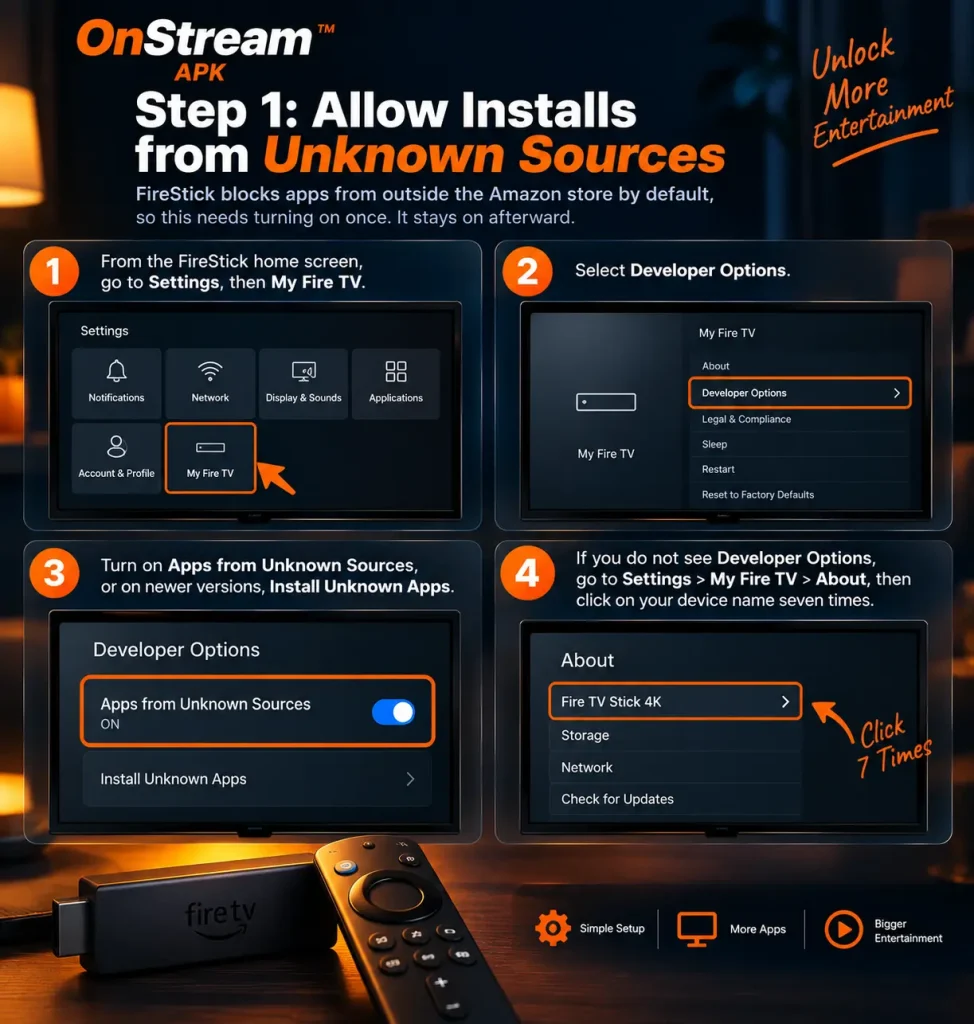
FireStick blocks apps from outside the Amazon store by default, so this needs turning on once. It stays on afterward.
That last point catches a lot of people out on newer FireStick software, and most guides skip it entirely.
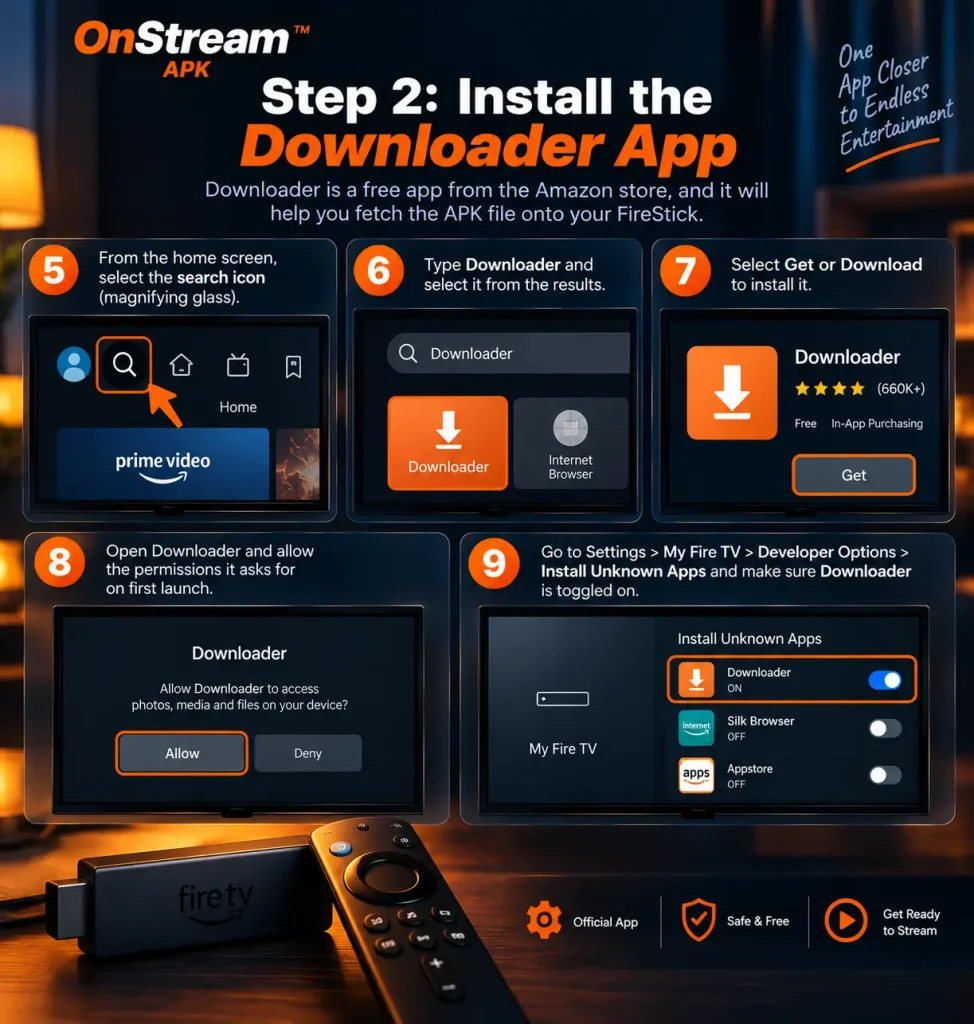
Step 2: Install the Downloader App
Downloader is a free app from the Amazon store itself, and it is what actually fetches the APK file onto your device.
Step 3: Install OnStream Using Our Downloader Code
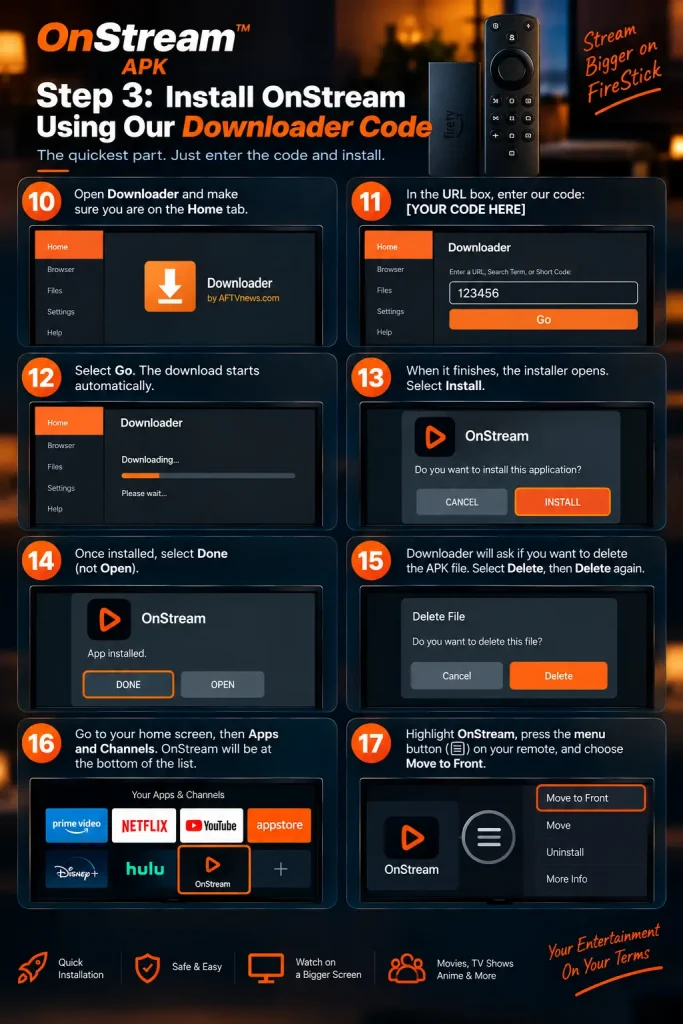
This is the quickest part. Inside the Downloader app, you can type either a short numeric code or a full web address.
If the code does not work for any reason, you can type the full web address of our download page into Downloader instead, which fetches the identical file.
What Is a Downloader Code, and Why Do Different Sites Give Different Ones?
This confuses almost everyone the first time, so it is worth a quick explanation. A Downloader code is not something the app developer issues. It is a short numeric shortcut that any website can register, and it simply points to that site’s own download page.
That is why searching for an onstream apk code for firestick turns up several completely different numbers on different sites. They all lead to a version of the same app, but they lead there through whichever site registered that particular code. Using the code on this page means you are downloading the same verified file covered on our download page, rather than whatever build a third party site happens to be hosting.
Which FireStick Models Work?
|
Model |
Works? |
Notes |
|---|---|---|
|
Fire TV Stick (2nd and 3rd gen) |
Yes |
Fine for HD, may stutter on 4K sources |
|
Fire TV Stick Lite |
Yes |
Works well, but has the least storage of the range |
|
Fire TV Stick 4K |
Yes |
Best balance for most people |
|
Fire TV Stick 4K Max |
Yes |
Smoothest option, handles 4K sources comfortably |
|
Fire TV Cube |
Yes |
Fastest of the range, plus hands free Alexa control |
|
Fire TV built into a TV (Toshiba, Insignia) |
Yes |
Same Downloader method applies |
|
Fire TV Stick 1st gen (2014) |
No |
Too old, Android version is no longer supported |
The Storage Problem Every FireStick Owner Hits
FireSticks ship with 8 GB of storage, and roughly 5 GB of that is usable after the system takes its share. That fills up faster than people expect, and when it does, apps start crashing, downloads fail halfway, and installs refuse to complete.
If you are running low, here is what actually helps, in order of how much space it frees:
Getting Around the App with a Remote
The FireStick remote has no touchscreen and no mouse, which makes some app screens awkward the first time.
Use the directional pad to move between sections. The main navigation, movies, TV shows, live channels, responds to left and right on the D-pad.
Long press the centre button on a title to bring up extra options like adding it to favourites, rather than just playing it immediately.
Typing in the search box is slow with the remote. The Fire TV app on your phone lets you type using your phone keyboard, which is much faster for searching. It is a free Amazon app and worth installing just for this.
If a screen will not respond to the D-pad at all, a cheap USB air mouse solves it instantly. This affects some sideloaded apps on FireStick generally, not just this one.
Real-Debrid and Trakt Setup
Two optional integrations that genuinely improve the experience on a big screen.
Real-Debrid gives you faster, more reliable streaming links, and it is a paid third party service unrelated to OnStream. If you already have an account, open OnStream, go to Settings, select Login to Real-Debrid, then visit real-debrid.com/device and enter the code shown on your TV. Once linked, premium links appear tagged in the list.
Trakt syncs your watch history and progress across devices, so you can start something on your phone and finish it on the FireStick. Go to Settings, choose the Trakt option, visit trakt.tv/activate, and enter the code displayed.
Neither is required. The app works fully without both.
Troubleshooting OnStream on FireStick
|
Problem |
Likely Cause |
Fix |
|---|---|---|
|
“App not installed” at the end |
Not enough free storage |
Free up space using the storage tips above, then retry |
|
Downloader says it cannot reach the site |
Typo in the code or URL, or no internet |
Re-enter carefully, FireStick keyboards make mistakes easy |
|
Install button greyed out |
Install Unknown Apps not enabled for Downloader specifically |
Settings, My Fire TV, Developer Options, enable it for Downloader |
|
App installed but no links play |
Server side issue with that title |
Switch servers inside the player, or update to the newest version |
|
Constant buffering on 4K content |
Older FireStick model or slow connection |
Drop to 1080p, or switch to a different server |
|
App disappeared after a FireStick update |
System update cleared sideloaded apps |
Reinstall using the same steps, it takes two minutes |
|
Remote will not select buttons in the app |
D-pad navigation issue on some screens |
Restart the app first, use a USB air mouse if it persists |
|
Downloads keep failing partway |
Storage full |
Clear old APKs and cached data |
How to Update OnStream on FireStick
There is no automatic update, so you do this manually every so often. The good news is it takes under a minute.
You do not need to uninstall the old version first. Running an outdated build is the most common reason links stop working, so it is worth checking back every few weeks.
Monthly and Yearly Plans
Alongside the free app, we also offer optional monthly and yearly plans for anyone who wants extra premium live TV channels and priority support. The free version of OnStream stays completely free and always will, these plans are simply an add on for people who want more. If you would like current pricing or have questions before deciding, message us directly and we will walk you through the options.
Frequently Asked Questions
Conclusion
The FireStick install comes down to three things: turn on unknown sources, install Downloader, and enter the code. Once it is on there, the two problems you are most likely to hit are storage filling up and the app going out of date, both covered above and both quick to sort out. If you also want OnStream on other devices, the Android TV guide covers Sony, TCL and Xiaomi sets, and the main OnStream APK page has the general overview.