How to Download OnStream APK on PC/Windows
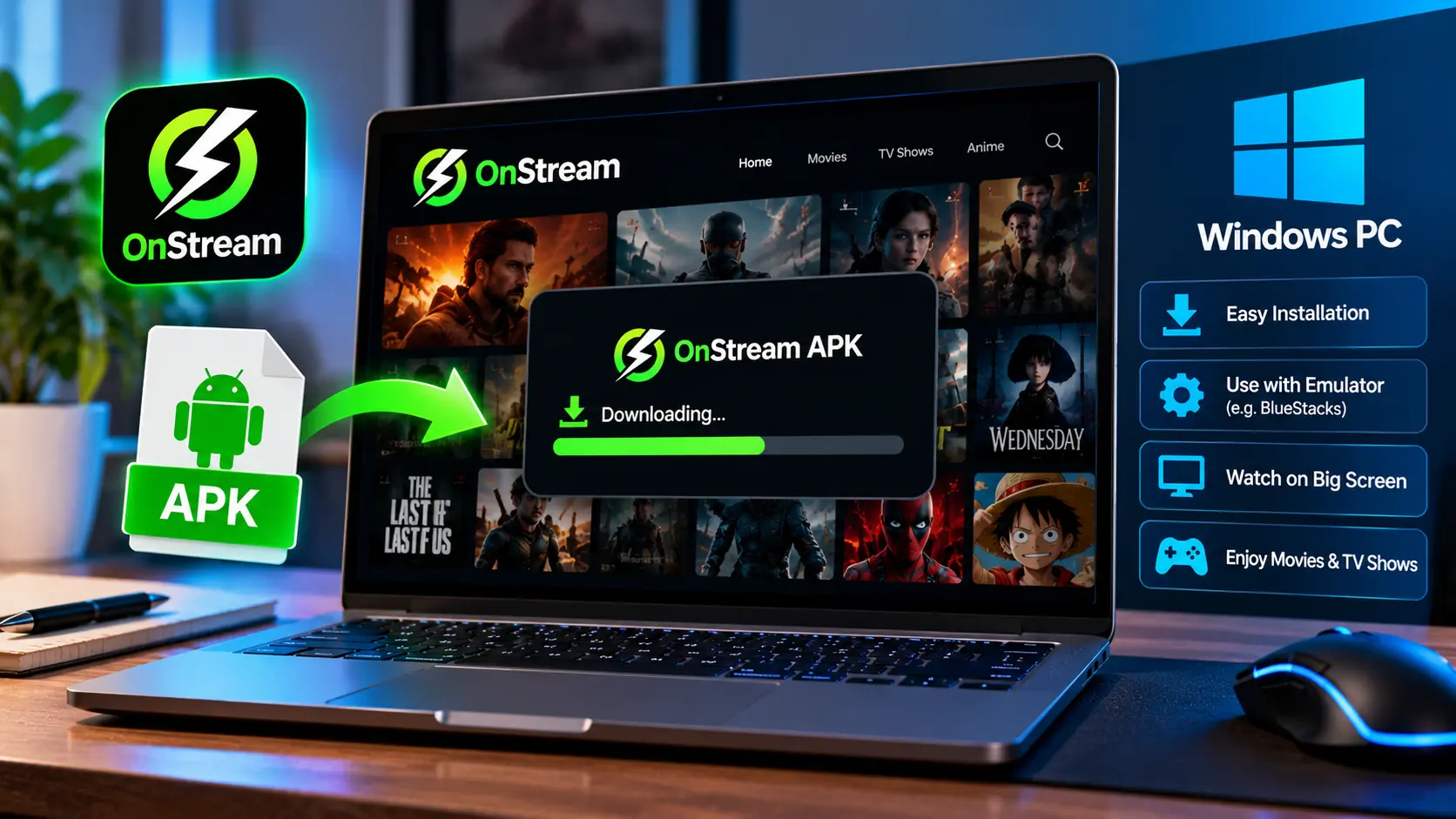
Before anything else, it helps to set expectations correctly: there is no version of OnStream that installs on Windows the way a normal .exe program does. It is an Android app, so getting it onto a PC always means one of two things, running it inside an Android emulator, or mirroring it from a phone that already has it. If you just want to download onstream apk for pc and get moving without reading a long comparison first, this is the fast version, what to download, where from, and which path to pick.
Why Watch OnStream on PC Instead of Your Phone
It is worth being honest about why anyone bothers with this in the first place, since a phone screen already works fine for most people. The PC route mostly appeals to a specific set of situations rather than being universally better.
● You already have a monitor or TV connected to your PC. Plugging into a bigger display through an emulator is often simpler than setting up a separate FireStick or smart TV app.
● Typing is faster with a keyboard. Searching titles or filtering by genre is noticeably quicker with a physical keyboard than tapping out letters on a phone.
● You want it running in a window while you work. A PC lets you keep OnStream open alongside other tasks, something a phone or TV cannot really do.
● Your phone’s storage is already tight. Offline downloads take up phone storage fast; running everything through an emulator keeps that load off your phone entirely.
None of this means PC is the “better” way to use OnStream, just that it solves a different problem than the phone version does. If none of the points above apply to you, sticking with your phone is honestly the simpler choice.
Where to Actually Get the File From
This is the part most guides skip past too quickly. When you search for onstream apk for pc, a lot of what comes up is third party aggregator sites hosting a repackaged or outdated copy of the file, not the developer’s own build. The safest approach is to grab the APK once from a source you trust, then use that same file whether you are installing it in an emulator or just keeping it on hand. Our verified APK release is scanned and kept current, so it is the one file you need regardless of which method below you choose.
Pick Your Method: Emulator or Phone Mirroring
There are really only two honest routes for an onstream pc apk download to actually end up playing on your screen:
● An Android emulator (BlueStacks, LDPlayer, or NoxPlayer). You install the emulator once, then install the OnStream APK inside it exactly like you would on a phone. This gives you a permanent, standalone setup that does not depend on your phone being nearby.
● Mirroring your phone to your PC. If OnStream is already installed and working on your phone, Windows 11’s built in Phone Link app, or the free tool scrcpy on Windows 10, can display your phone’s screen on your monitor with no separate install at all.
As a rough rule: if you want OnStream permanently set up on your PC, go with an emulator. If you already use it on your phone and just want it on a bigger screen right now, mirroring is faster and skips the download step entirely. For a full side by side comparison of BlueStacks versus LDPlayer versus NoxPlayer, along with exact system requirements and the mirroring setup steps, our complete PC installation guide covers every part of it in detail.
The Fast Version: Emulator Method in Five Steps
● Install an emulator. BlueStacks is the safest default choice for most PCs; go lighter with LDPlayer if your machine is older or lower spec.
● Let it finish first time setup. This includes signing into a Google account inside the emulator itself, separate from your own accounts.
● Download the OnStream APK inside the emulator’s browser, or drag a file you already downloaded on your regular browser into the emulator window.
● Open the file and confirm the install prompt. Most emulators show a simple yes or no popup.
● Launch OnStream from the emulator’s home screen. It runs exactly like it would on a phone, just with mouse and keyboard support.
Common Mistakes When Downloading for Windows
● Downloading from a site with no clear developer information. If a page cannot tell you who publishes the app, treat the file as unverified.
● Assuming there is a separate “onstream apk for windows” build. There is not. It is the identical Android file, just run through an emulator.
● Skipping virtualization settings. Emulators need VT-x or AMD-V enabled in your PC’s BIOS, otherwise they will not open at all, no matter how many times you reinstall them.
● Choosing a heavy emulator on a light laptop. BlueStacks needs more RAM than LDPlayer. Matching the tool to your hardware avoids a lot of unnecessary lag.
How to Cleanly Uninstall Later
If you decide the emulator route is not for you, removing everything is simpler than the install itself, and doing it properly avoids leftover files eating up disk space for no reason.
● Uninstall OnStream from inside the emulator first. Long press its icon on the emulator’s home screen and choose uninstall, the same way you would on a real phone.
● Then uninstall the emulator itself through Windows. Go to Settings, Apps, find BlueStacks, LDPlayer or NoxPlayer, and uninstall it like any other Windows program.
● Check for a leftover data folder. Emulators sometimes leave a folder behind in your user directory or Program Files. A quick search for the emulator’s name after uninstalling will show if anything remains.
● Mirrored setups need no cleanup at all. If you used Phone Link or scrcpy instead of an emulator, there is nothing installed on the PC side to remove beyond the mirroring tool itself, if you want it gone too.
None of this affects OnStream on your phone. The app, your phone’s offline downloads and your account free experience there stay completely untouched, uninstalling on PC only removes the emulator copy.
Frequently Asked Questions
Final Word
Getting OnStream onto a Windows PC is less about the download itself, which takes seconds, and more about picking the right method for your setup. Grab the file from our official APK page, then head to our full PC and Windows guide for the complete emulator comparison, system requirements, and troubleshooting if anything does not go smoothly on the first try.