OnStream APK for iPhone: What iOS Users Need to Know
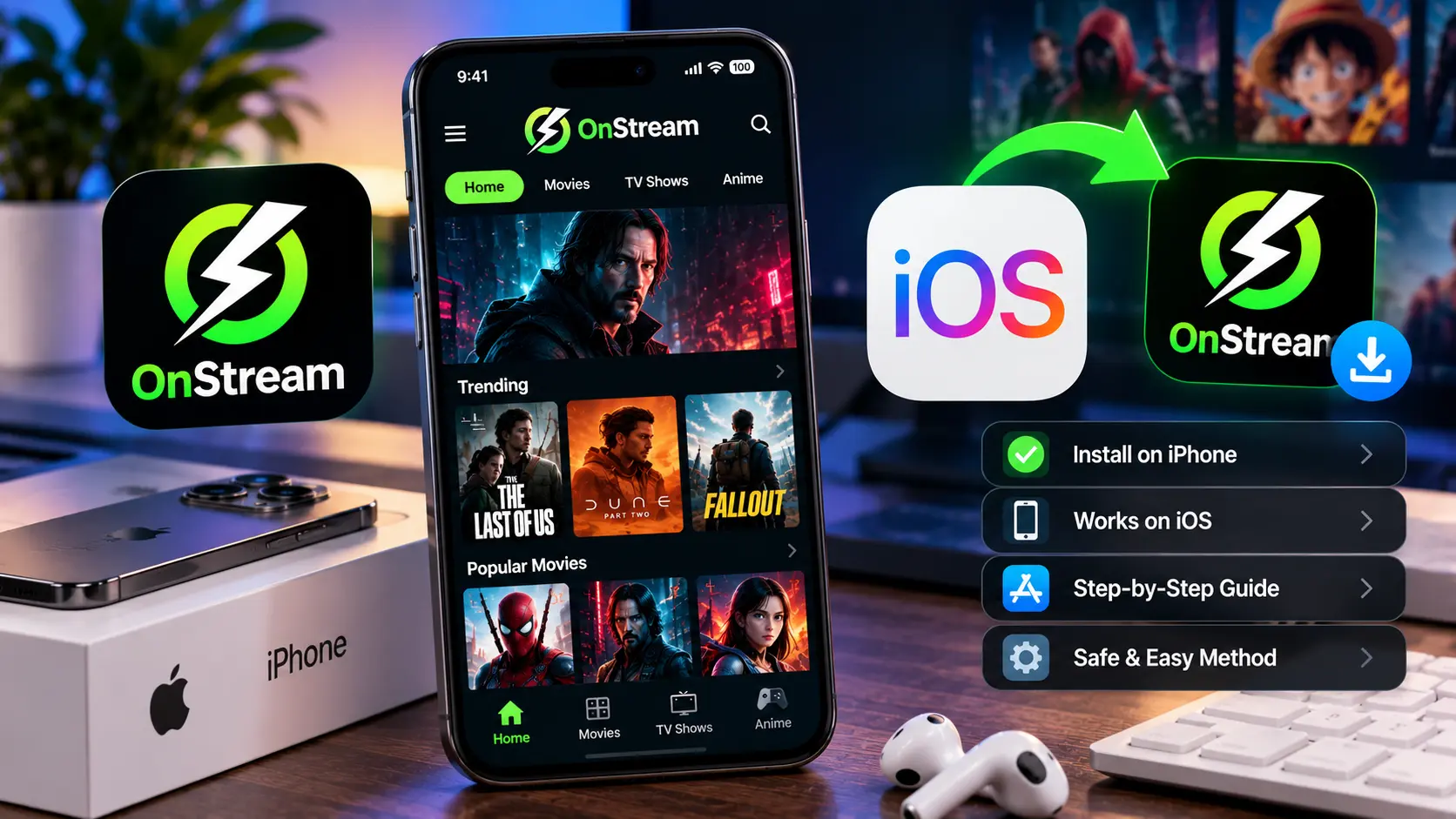
Let us get the awkward part out of the way first: an APK file will not install on an iPhone. APK is Android’s package format, and iOS simply cannot read it. That does not lock iPhone users out of OnStream, it just means the route is different, and a lot of the confusion around onstream apk for iphone comes from pages that skip over that difference. This is the short primer on what to know before you try anything. If you are already ready to install, our step-by-step iOS install guide has the full walkthrough.
What People Usually Mean by “OnStream APK iPhone”
Phrases like onstream apk iphone or onstream apk ios get typed by people who want one of three quite different things, and mixing them up is where most of the wasted time goes:
● You want the app on your iPhone. This is the reasonable one. It means the app’s iOS build, installed through a sideloading tool, since it is not in the App Store.
● You want to run the Android file on your iPhone. This does not work, and no converter or “APK installer for iOS” changes that.
● You found a page promising an onstream for ios apk download. Treat this one with suspicion. It is covered in the section on fake downloads further down.
Before You Start: A Quick Readiness Check
Most failed installs on iPhone come down to something small that was not sorted out beforehand. A two minute check saves a lot of retrying.
● Your iOS version. The app needs iOS 12 or later, but on iOS 16 and newer there is one extra step, covered in the next section.
● Enough free space. The app file itself is small, but downloads and offline titles need room, so a few gigabytes free is comfortable.
● A spare Apple ID, if you have one. Sideloading tools ask for an Apple ID to sign the app, and a separate one keeps that away from your main account.
● A computer, at least for the first setup. Some methods need one for the initial install, others do not but come with trade offs, which the iOS guide compares.
● A stable Wi-Fi connection. An interrupted download is the most common cause of “install failed” messages.
The Developer Mode Step That Trips People Up
If your iPhone runs iOS 16 or later, Apple requires Developer Mode to be switched on before a sideloaded app will open. You will find it under Settings, then Privacy & Security, near the bottom. The catch is that the toggle only appears after a sideloading tool has already put an app on your phone, so it is easy to assume it is missing when it just has not shown up yet.
Switch it on, let the iPhone restart, and confirm the prompt when it comes back. Skipping this is a common reason an app installs fine but then refuses to launch.
How to Spot a Fake OnStream iPhone Download
Because OnStream is not in the App Store, iPhone users are easier targets for lookalike pages. A few red flags are worth knowing:
● A page that asks for your Apple ID password on the website itself. Legitimate sideloading tools ask for Apple ID details inside their own app or desktop software, never through a web form.
● “Human verification” surveys before the download. A genuine file link does not need you to complete a survey or install another app first.
● An .apk file offered as the iPhone version. iOS cannot open it, so a site calling it the iPhone build either does not understand how iOS works or is not being straight with you.
● A configuration profile from a site you do not recognise. Profiles can grant broad trust on your device, so only install one from a source you have deliberately chosen.
● A similar sounding app in the App Store. If you find an app with a near identical name there, it is not this one.
None of these come up with a genuine source, so if you hit one, close the tab and start again from a page you trust.
Checking What the App Can Access on Your iPhone
iOS makes it easy to see exactly what any app has been allowed to do, and it is worth a quick look after installing. Open Settings, then Privacy & Security. Each category, such as contacts, photos, microphone and location, lists the apps that have asked for access.
A video streaming app has no reason to appear in the contacts, microphone or location lists. If OnStream, or something posing as it, shows up there, remove the permission or delete the app. On iOS 15.2 and later, App Privacy Report in the same menu can also show which domains an app has contacted once you switch it on.
iPhone or Android: Does It Change the Experience?
The iOS build offers the same library, subtitles and offline downloads, so the difference is upkeep rather than content. On Android you install the app once and update it whenever you like. On iPhone the signature on the app eventually expires, so you will refresh or reinstall now and then depending on the method you chose.
That is not a dealbreaker, but it is worth knowing before you commit. If you have an Android phone or tablet lying around, the OnStream for Android page shows the lower maintenance route.
Frequently Asked Questions
Final Word
So the short answer for anyone searching onstream apk for iphone: the file is not an APK, the route takes a little more setup than Android, and the things worth getting right are the readiness check, Developer Mode on newer iOS versions, and staying clear of fake downloads. When you are ready to install, the OnStream for iPhone and iPad page walks through each step from start to finish.