How to Install OnStream APK on Firestick
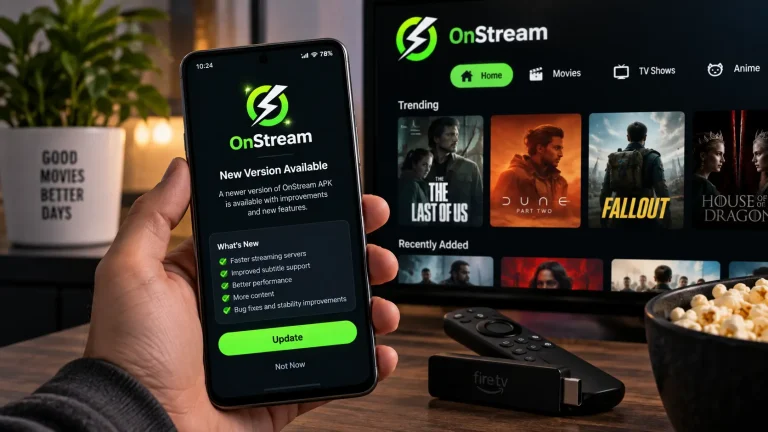
If you already have a FireStick hooked up to your TV, you are actually in one of the best positions to use OnStream. The big screen, the remote, the way apps like this are built to run smoothly on Fire TV hardware, it all fits together well. The only real hurdle is that Amazon does not list OnStream in its own app store, so you cannot just search for it and press install the way you would with a normal app. This is the quick version of how to install onstream apk on firestick, covering exactly what you need without wading through a long troubleshooting manual first.
What You Need Before You Start
● Any FireStick model, including the 4K, 4K Max, Lite or Fire TV Cube
● At least 200 to 300 MB of free storage
● A stable Wi-Fi connection
● About five minutes, most of that is waiting for one download
Step 1: Turn On Apps from Unknown Sources
Go to Settings, then My Fire TV, then Developer Options, and switch on Apps from Unknown Sources. This just tells the FireStick it is allowed to install something that did not come from the Amazon store. It is a one time toggle, not something you need to repeat.
Step 2: Get the Downloader App
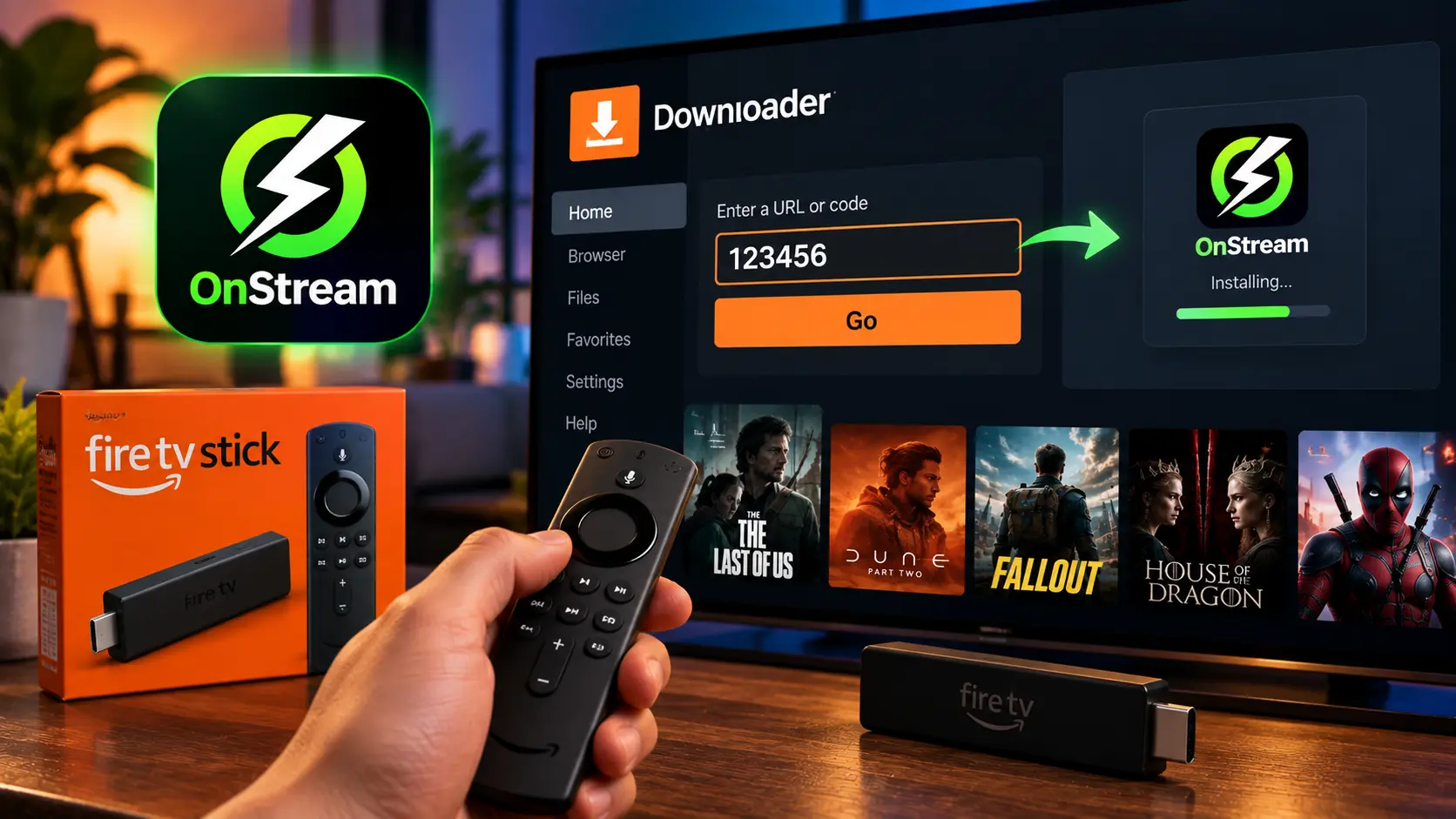
Downloader is a free, official app from the Amazon store itself, and it is the standard way to pull any APK onto a FireStick. Search for it from your home screen, install it like any other Fire TV app, and open it once so it can request the permissions it needs.
Step 3: Enter the OnStream Firestick Downloader Code
Inside Downloader, you will see a URL box on the home tab. This is where an onstream firestick downloader code comes in, a short numeric shortcut instead of typing a full web address on a remote. Press Go, and the file downloads and installs itself in a couple of taps. Once it says installed, choose Done rather than Open, and let Downloader delete the APK file afterward to save space, this does not remove the app you just installed.
It is worth knowing that a downloader code is not something OnStream itself issues. It is just a shortcut any site can register that points to that site’s own file, which is why you will see different codes floating around depending on where you search. For the exact, current code tied to our verified build, our full FireStick installation guide keeps it up to date, along with what to do if it stops working.
Step 4: Find OnStream on Your Home Screen
Newly sideloaded apps land at the very end of your Apps and Channels row rather than near the top. Highlight it, press the menu button on your remote, and choose Move to Front so you are not scrolling to find it every time you turn the TV on.
Quick Fixes If Something Goes Wrong
● Install button is greyed out. Unknown Apps needs to be enabled specifically for Downloader, not just the device overall.
● “App not installed” message. Almost always low storage. Clear out old APK files inside Downloader’s Files tab and try again.
● Downloader cannot reach the code. FireStick remotes make typos easy. Re-enter it carefully, or use the full download link instead.
These cover the handful of issues that come up most often. Most of them trace back to storage space or a mistyped code, both quick to fix once you know where to look.
Frequently Asked Questions
Final Word
Installing OnStream on a FireStick really does come down to three things: enable unknown sources, install Downloader, then enter the code. Once that is done, you are watching within a couple of minutes. If you want the complete walkthrough with troubleshooting, storage tips and the current verified code, head over to our dedicated FireStick guide, or grab the file directly from the main download page if you would rather install it using the full link instead of a code.